
Improving the experience without starting over.
Nearbor serves communities of different kinds and ages, from neighbourhood groups and families to volunteer and faith communities. I joined an existing product, working with the visual language and components established by the previous designer. I designed most of the screens and focused on improving the experience: making information easier to read, explaining what happens next, and extending familiar flows without adding unnecessary complexity.
Onboarding
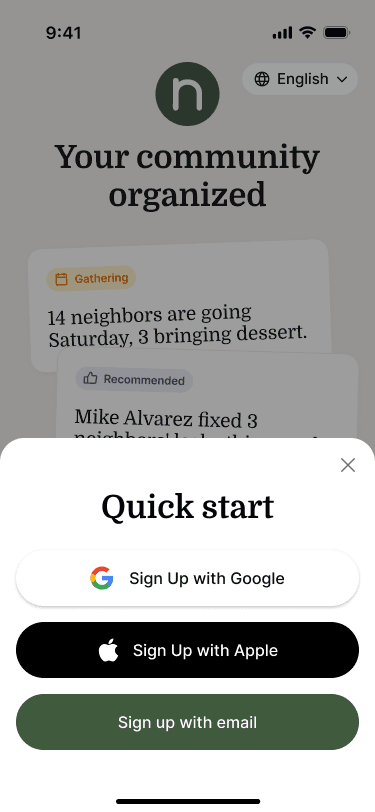
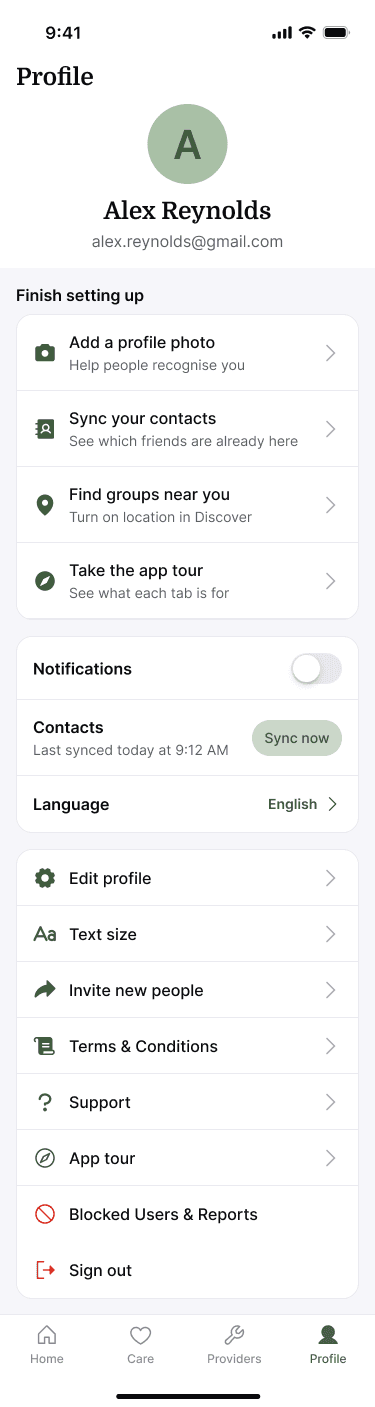
Join first, finish setting up later
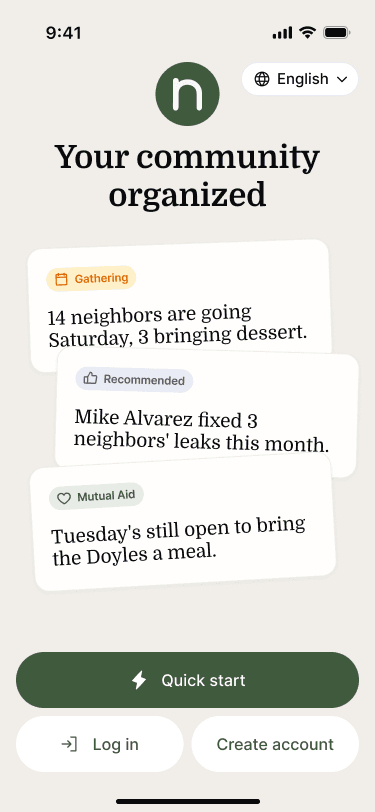
The client described a real situation: getting around twenty people into the app in one room, with full onboarding reportedly taking about ten minutes. I designed a Quick Start alternative that separates entry from optional setup. Profile photo, contact sync, discovery, and the app tour can be revisited later. The design remains in review; the case shows the proposed direction rather than a measured reduction in onboarding time.
Structure
Communities, groups and events
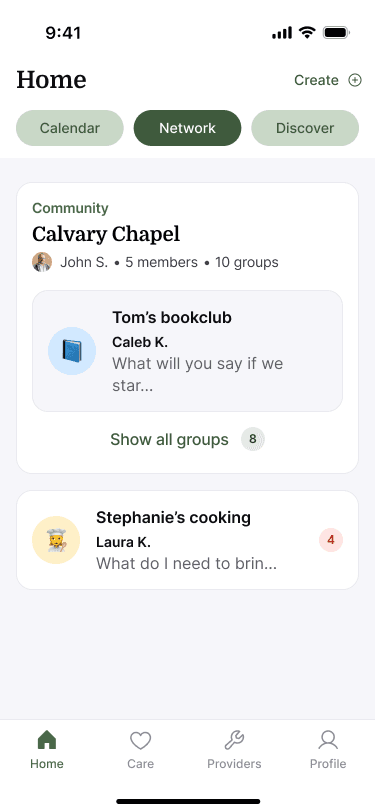
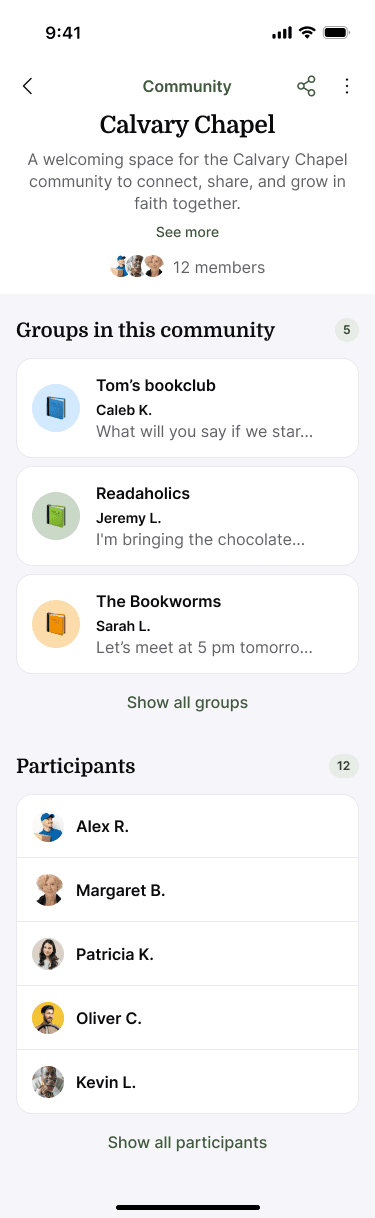
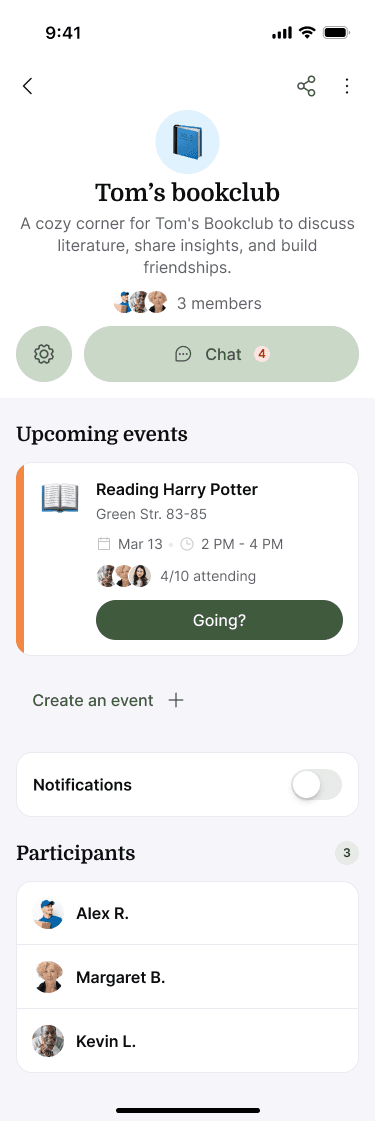
Nearbor organises people in three layers. A community, such as a church or a neighbourhood, holds groups; a group, like a book club, has its own chat and events; an event belongs to a group and carries the plan, the people and the attachments. Each layer has its own page, members and actions, so it's always clear where something lives.

Home
Calendar, Network and Discover
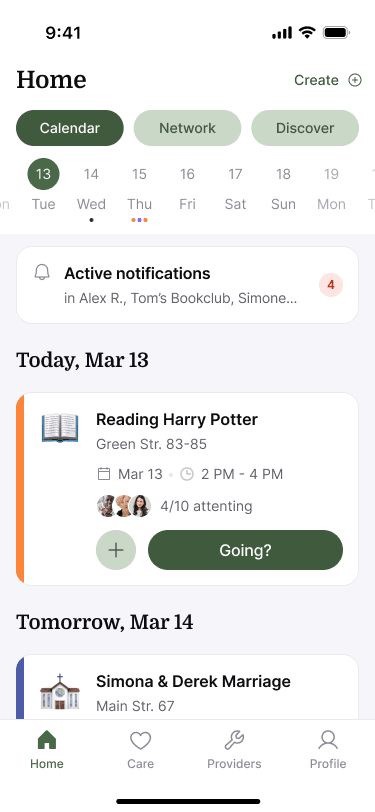
Home has three tabs. Calendar shows the days ahead and the events someone is going to, with an RSVP sheet that asks a single question. Network lists the communities and groups a person belongs to, with their latest messages. Discover shows what else is nearby. Create starts an event, a care event or a group from any tab.
Discover
A new way to find what's nearby
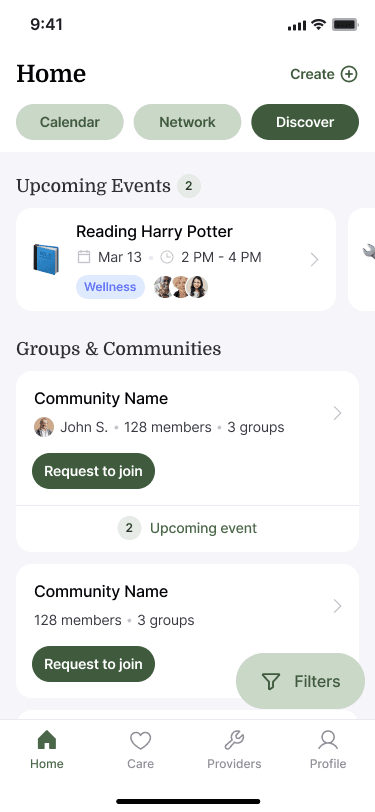
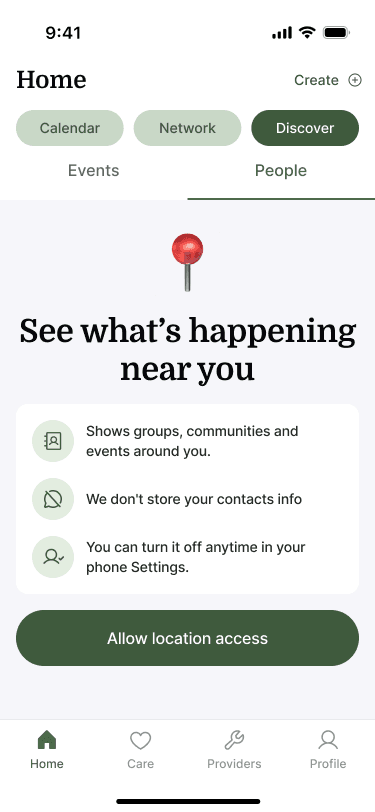
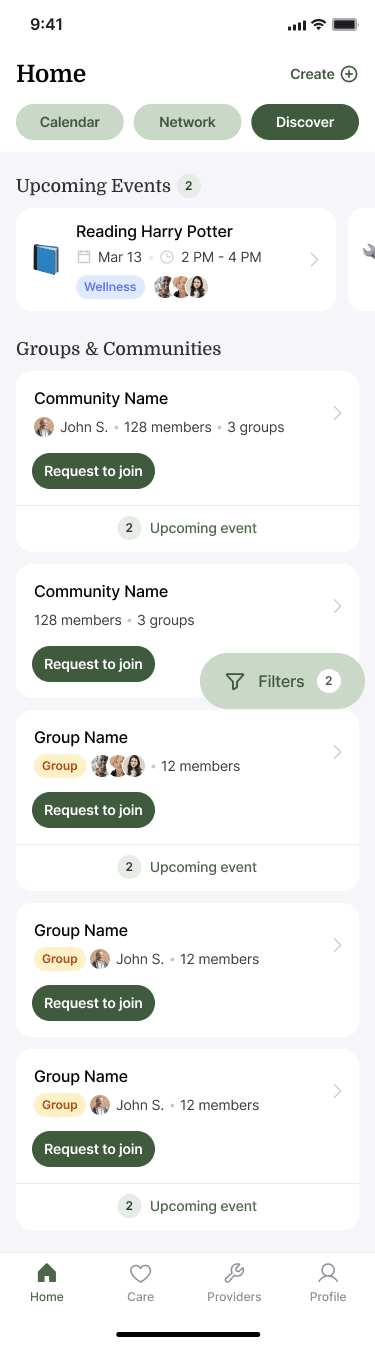
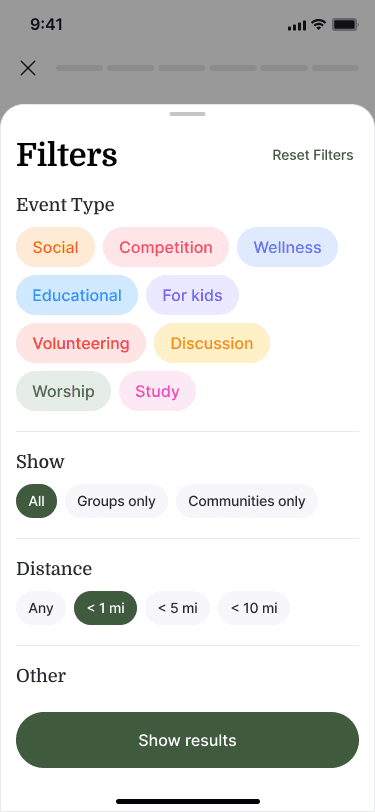
The redesigned Discover asks for location first and says why. It then shows upcoming events and the groups and communities around, each with a request to join and its next events. A filters sheet narrows the list by event type, by groups or communities, and by distance, and each result opens to its own page with one clear join button.
Referral
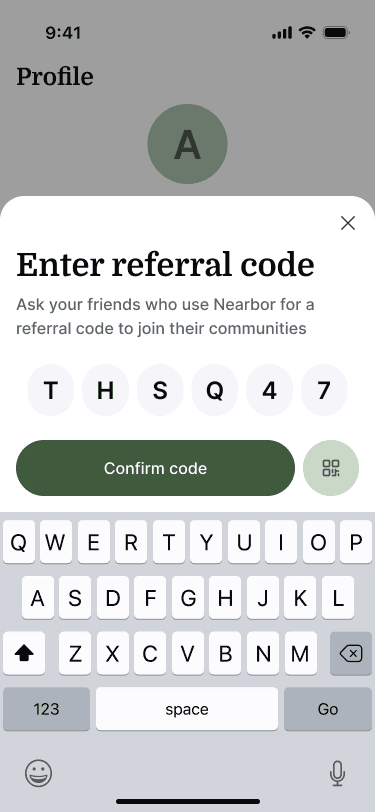
Join with a code or a QR
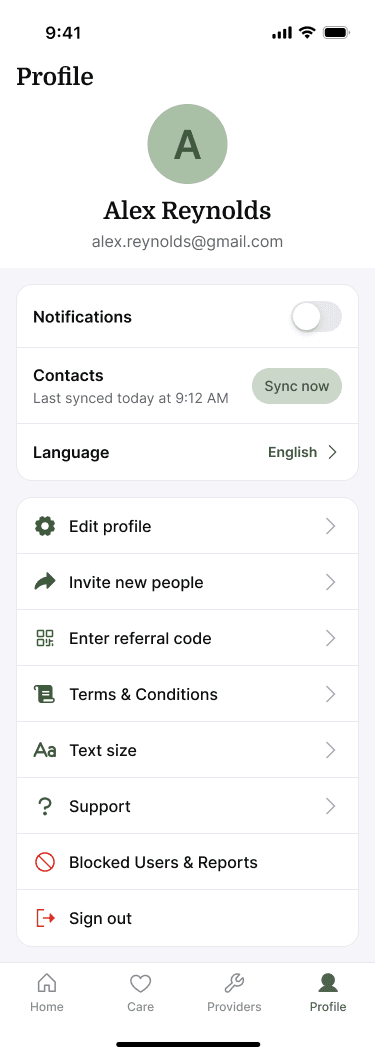
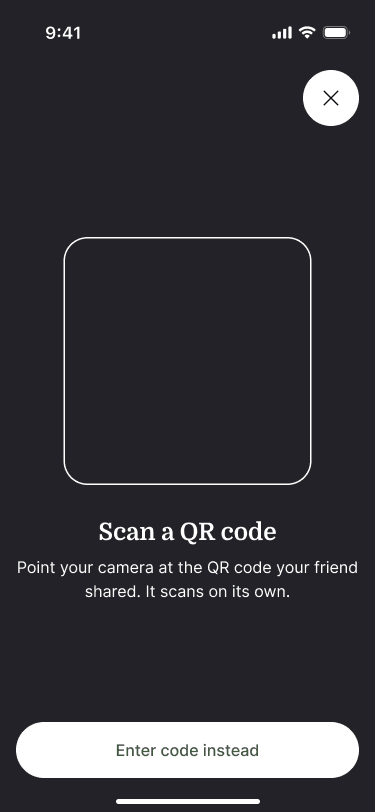
A referral code connects a new person to the communities of whoever invited them. It can be typed or scanned as a QR code, with a clear message when no one matches. The code lives in the profile, and the same entry appears where people need it most: on an empty home and in Discover.
Recovery
Explain the blocker and offer a next step
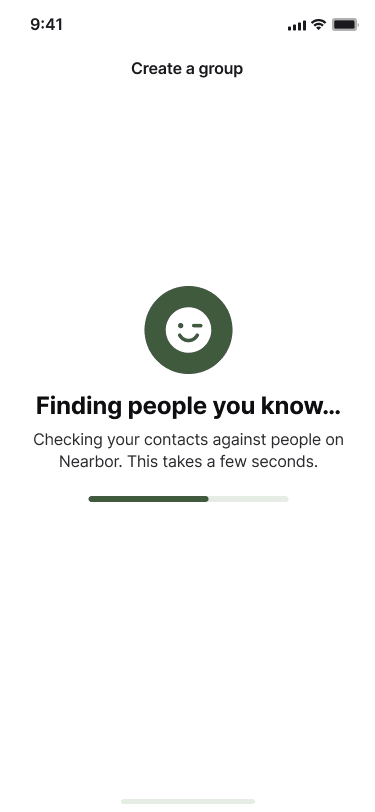
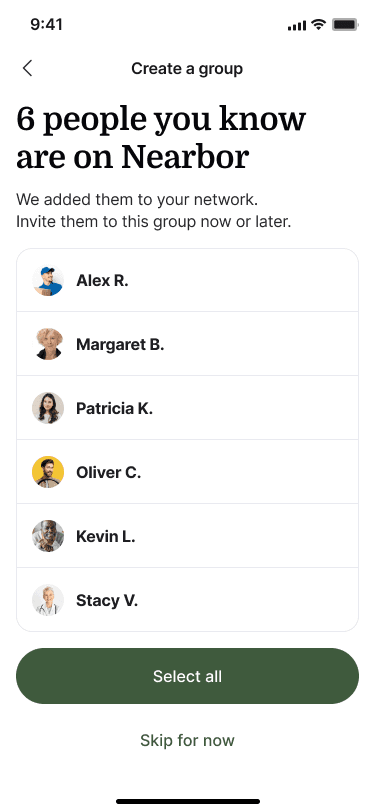
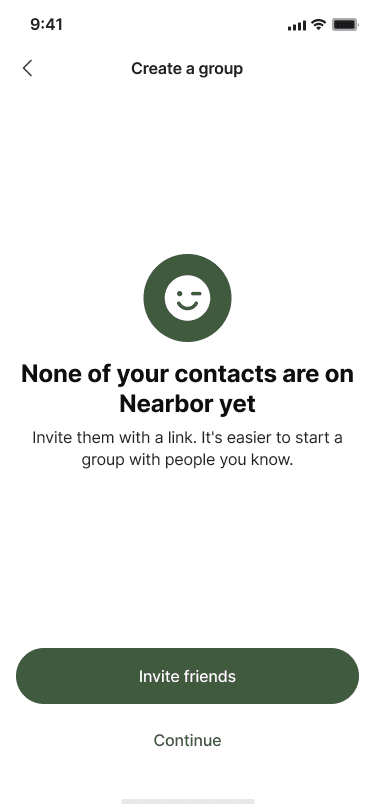
A successful contact sync does not always find someone. I designed distinct outcomes for matches and no matches, so the response explains what actually happened and offers a next step, like inviting people with a link. These states turn an empty screen into an explanation and an action.
Events
Make commitments and consequences visible
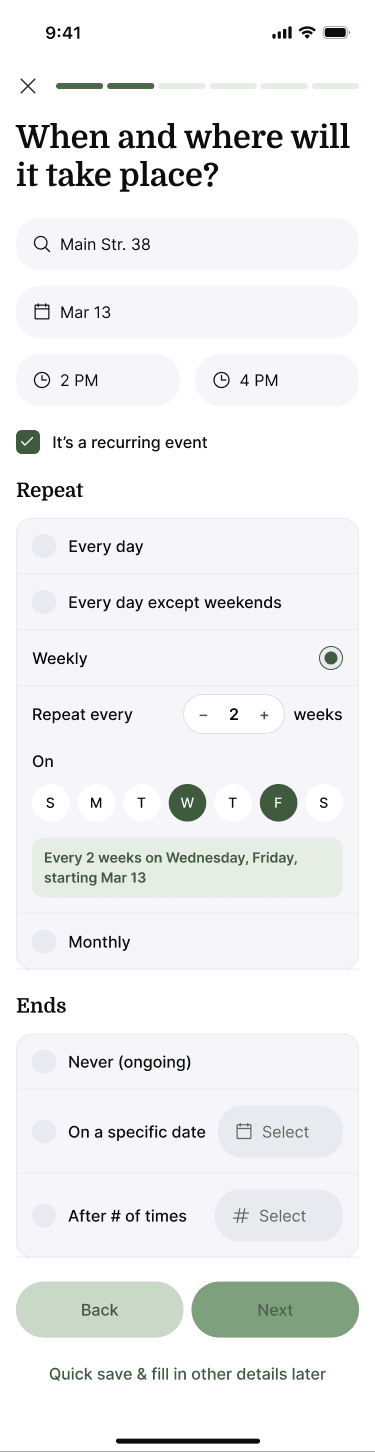
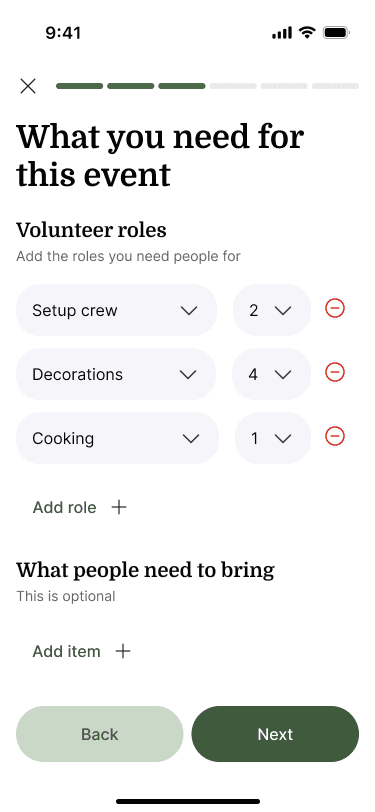
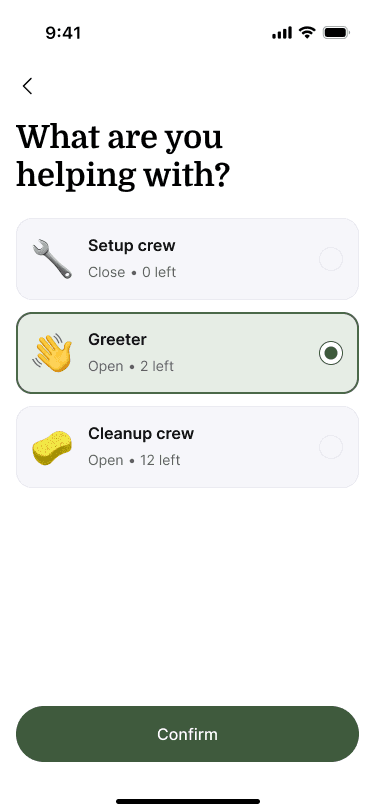
Organisers need to define a schedule and see where help is still needed. I extended the event flow with recurrence controls, volunteer roles, and clearer participant choices. Editing a recurring event asks whether the change affects one occurrence or the whole series. Role selection shows available places, while the organiser's detail view distinguishes filled roles from shortages. The emphasis is on making the consequence of a choice clear before it is confirmed.

Event details
Everything an event needs
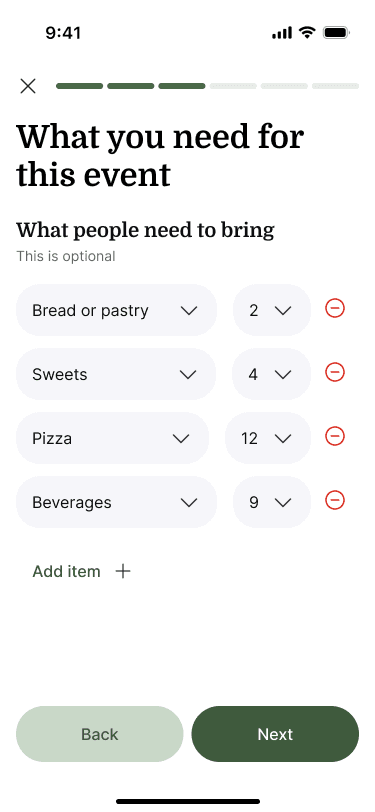
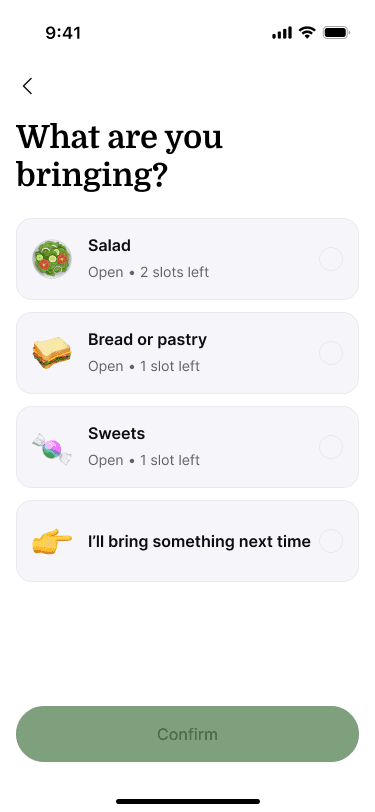
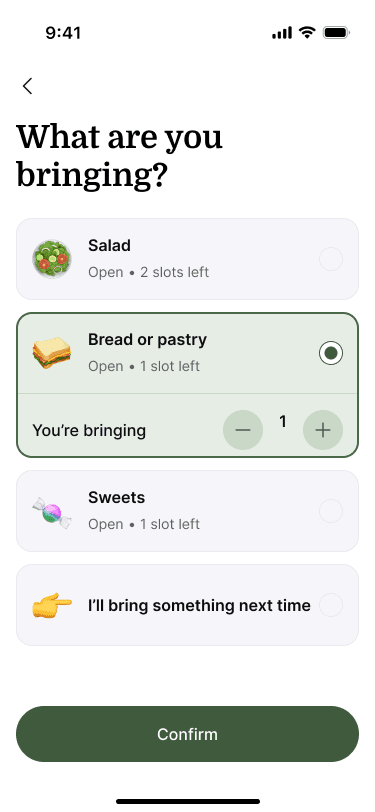
Organisers can list what people should bring, and participants pick from what's still open. Photos and files attach to the event, open full screen and upload with clear progress. After the event, a notification asks the organiser who came, and the attendance is saved to the event.
Conversation
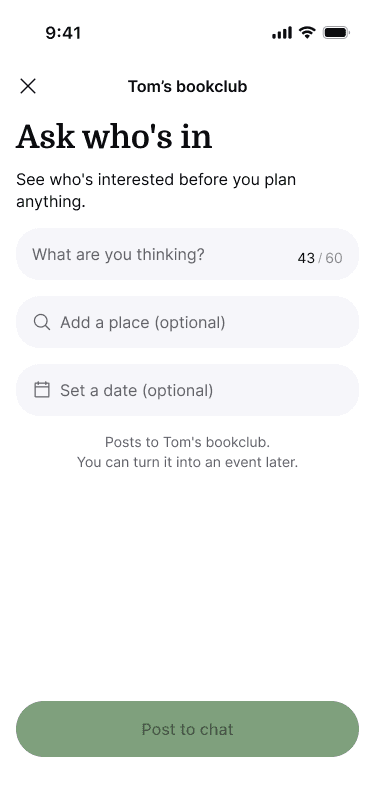
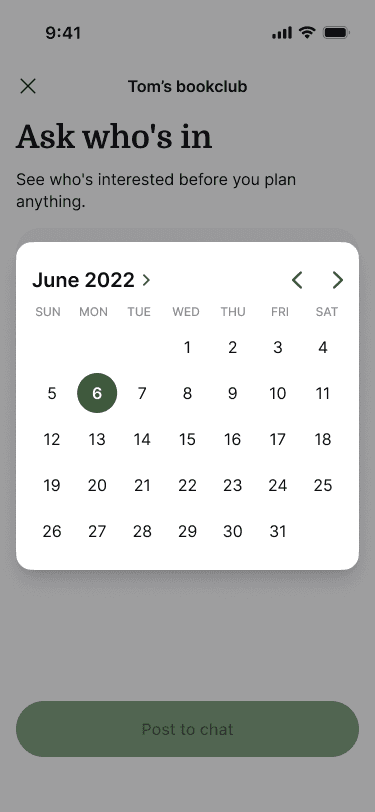
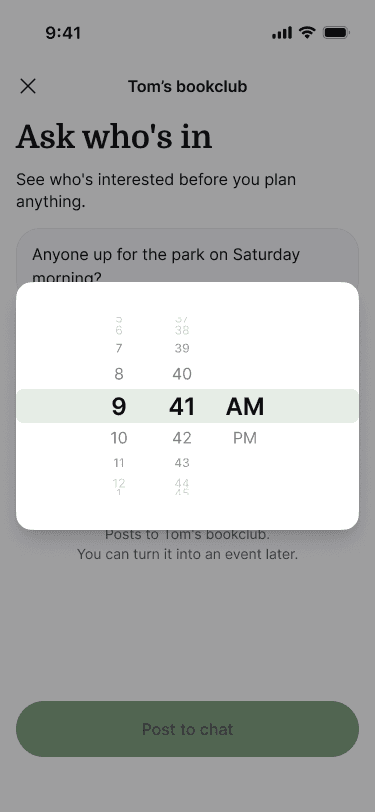
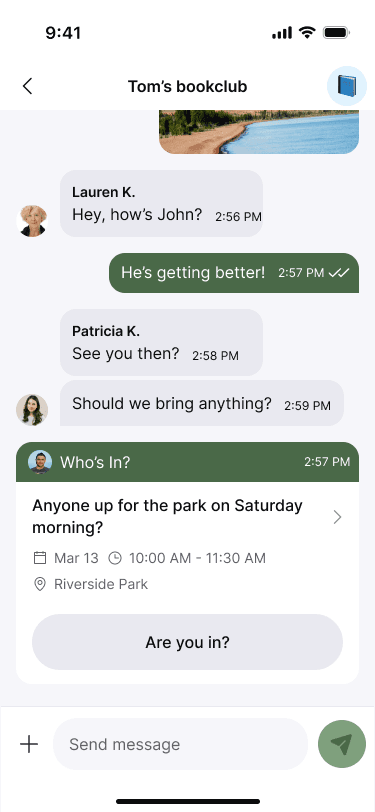
Test an idea before organising an event
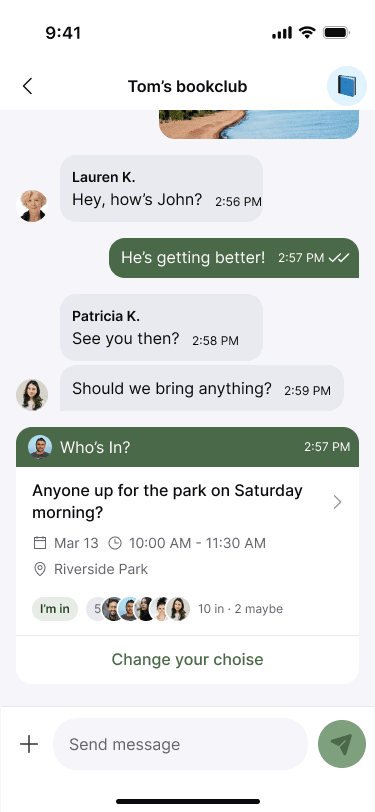
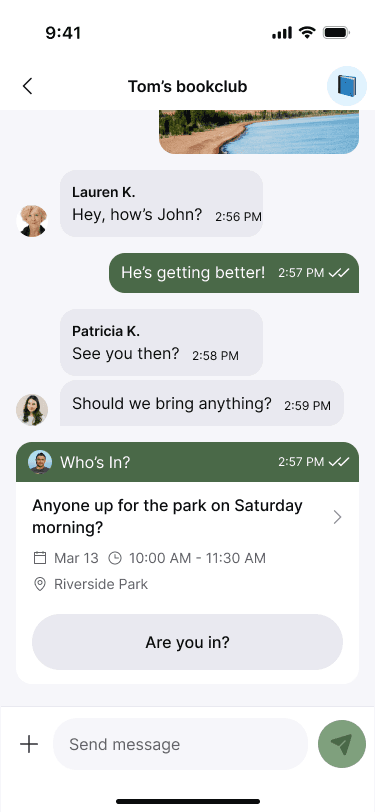
Not every gathering starts with a formal plan. Who's In? lets a group ask about an activity inside its existing chat, with an optional date, time and place, gather responses, and then turn interest into an event. I designed the creation, member-response, and organiser states around that progression. Keeping the feature within a group conversation avoids introducing another place people need to learn and navigate.
Care
Show where help is still needed
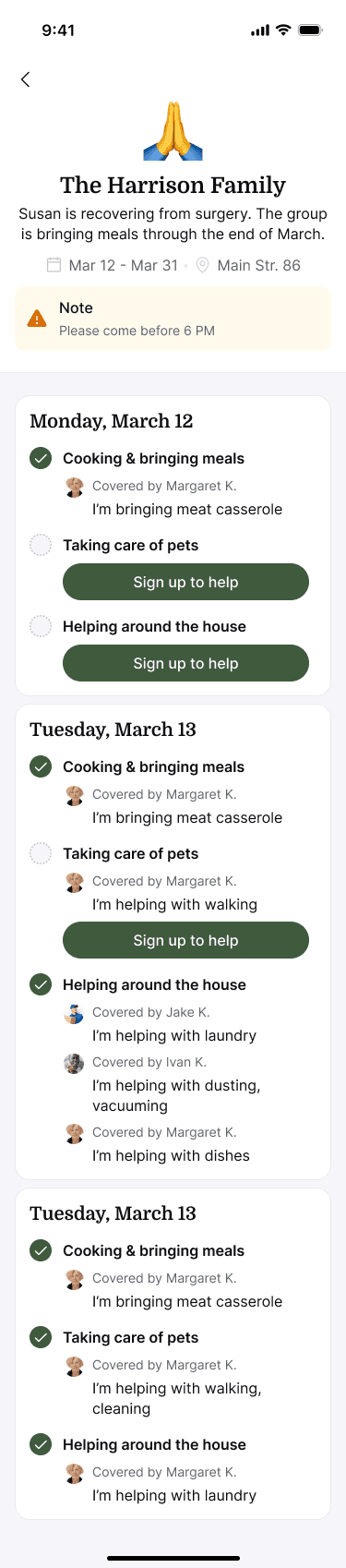
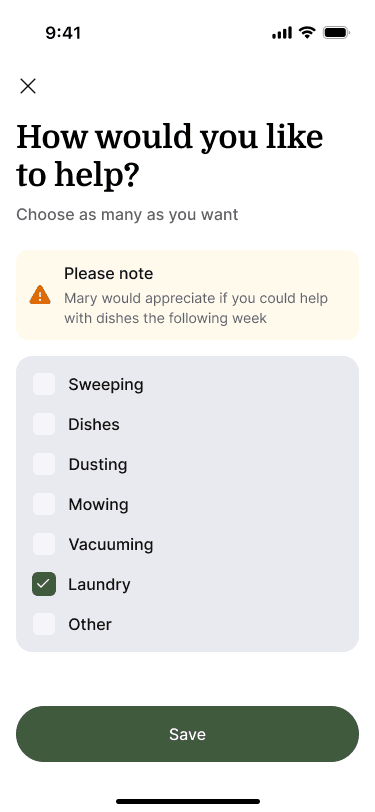
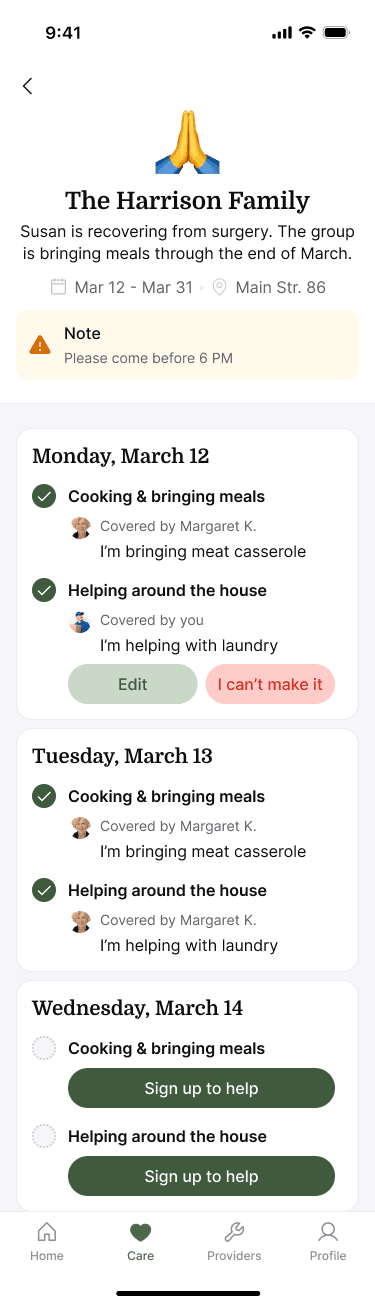
Care brings coordination down to specific days and tasks. The screens show which needs are covered, where a person can volunteer, and how their own commitment appears afterwards. A participant can choose how to help, review the commitment, and change it if their plans change. Showing both the available and committed states makes the flow understandable without relying on a single idealised screen.
Providers
Keep useful records close to the people who need them
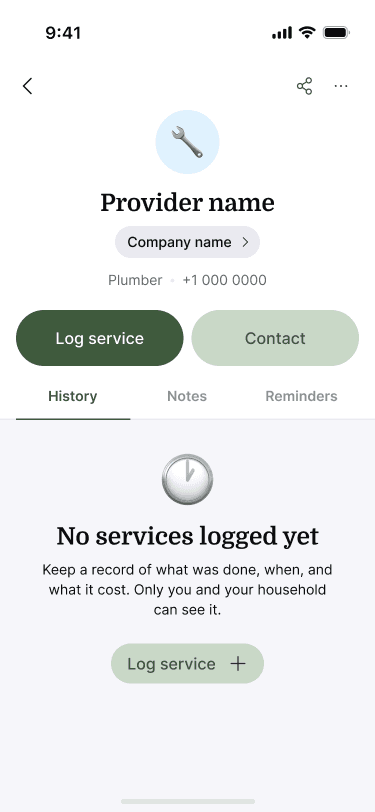
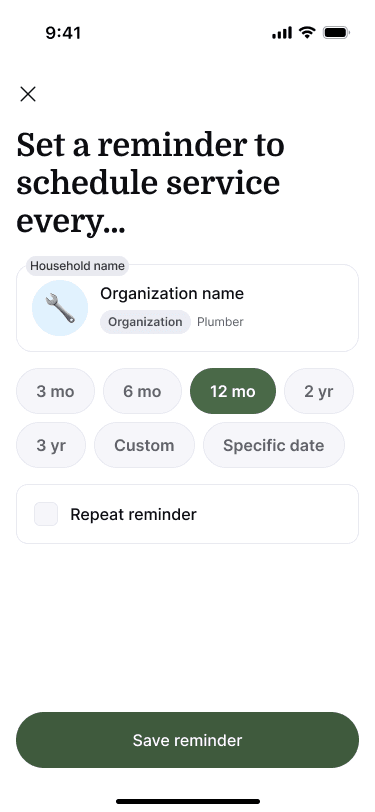
I extended the existing provider experience beyond a saved contact. Service history, attachments, and reminders give people a practical record to return to. Household sharing is a separate, explicit action: people choose providers to share rather than being shown an unexplained all-or-nothing setting. The empty state also explains who can see service records, helping distinguish personal or household information from public recommendations.
Community
Keep a growing community understandable
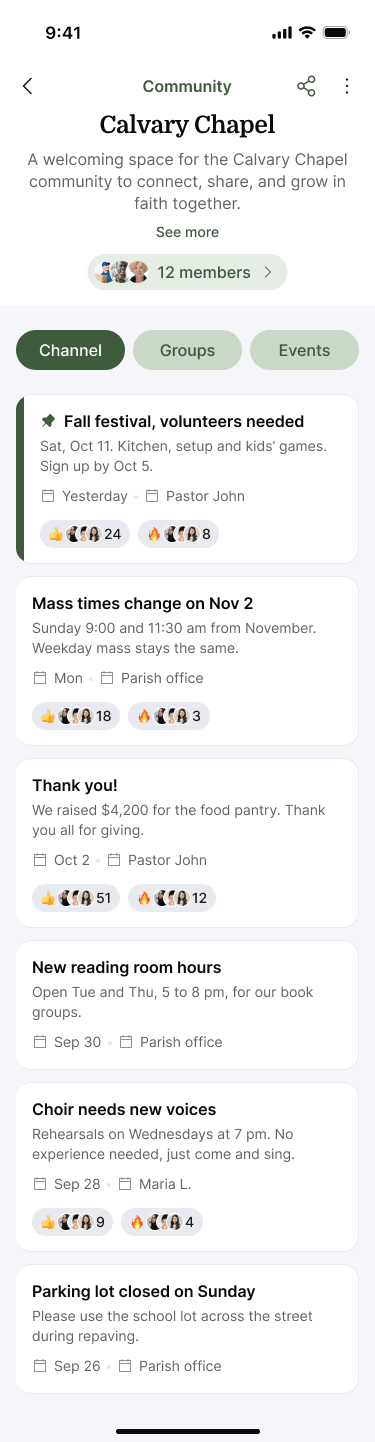
Larger communities need a way to share announcements without burying them in conversation. I designed a community channel that keeps announcements apart from group chat, an audience picker so an administrator can choose who each announcement reaches, and more specific notification controls for members. They follow the same principle as the rest of the work: extend the existing structure before adding another layer to it.
Readability
Start with what people can read
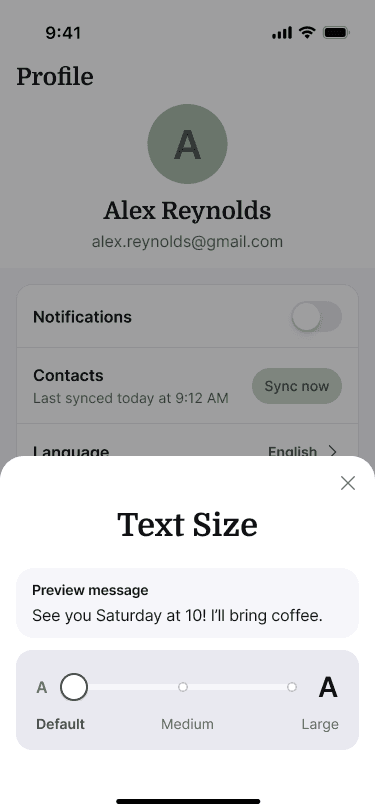
The client specifically raised the needs of older users and asked for more readable chat content. I worked on a typography and readability audit, then designed a text-size control with a message preview. Default, Medium, and Large examples make the effect visible before a person returns to the conversation. This supports the broader accessibility goal through a concrete, understandable choice; it is not a claim of certified accessibility or validated usability for every age group.
Notifications
Notifications that ask for a decision
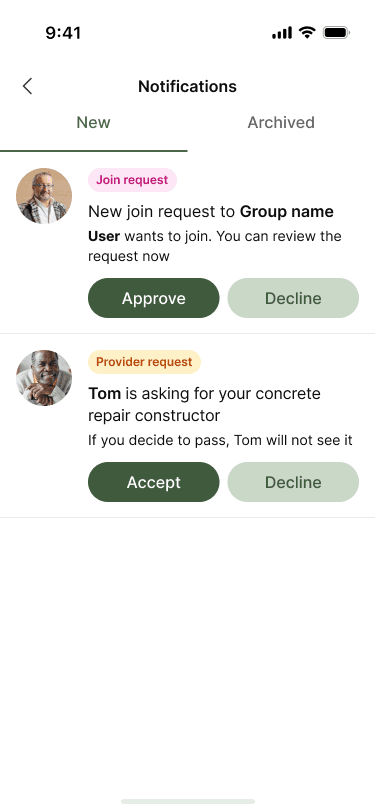
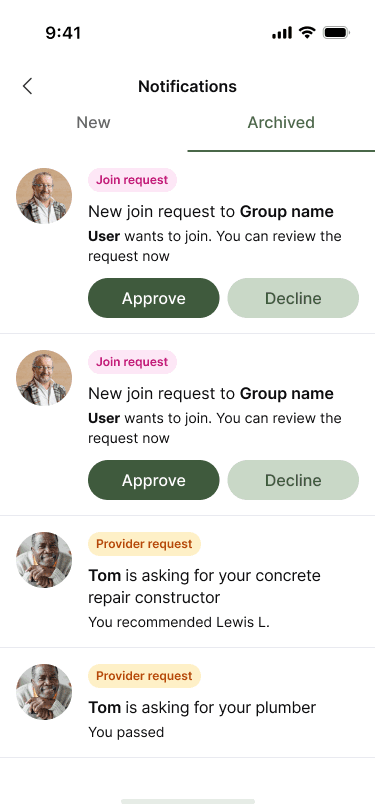
Notifications keep new items apart from archived ones and let people act in place, approving a join request or answering a provider request without leaving the list. Settings control push and chat alerts, then go down to each community and group: everything, events only, custom or off.
Updates
Telling people what changed
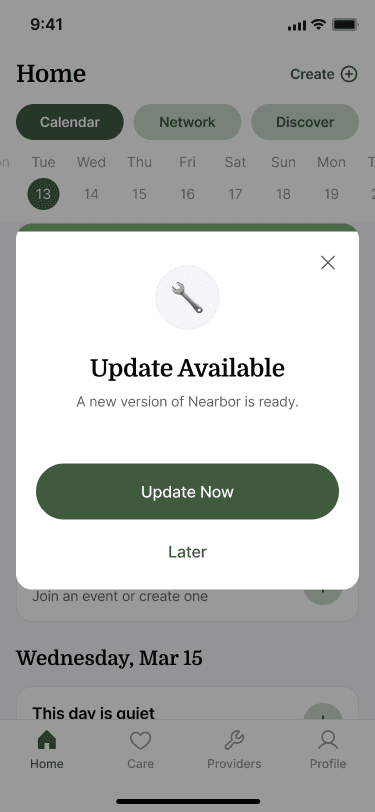
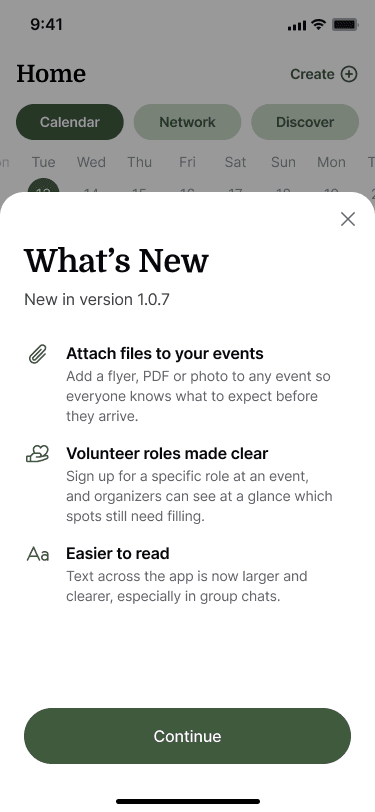
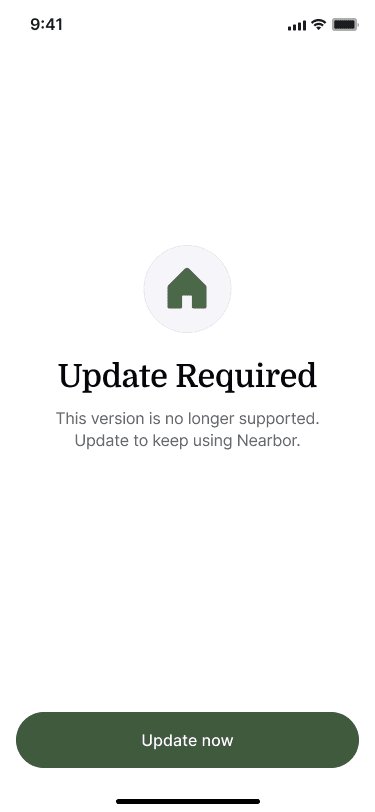
When a new version is out, the app offers it without blocking: Update now or Later. What's New lists the changes in plain words. When an old version is no longer supported, a required update explains why before it asks.
Closing
Product maintenance as design work
This work shows product maintenance as design work: improving established flows, addressing confusing states, and extending the app while retaining a familiar visual foundation. The evidence here is the design work and documented decisions; measured product outcomes are not available.
